
Getting started
Welcome to Antare
The Console
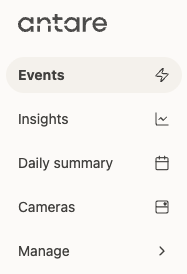
The Antare Console is where you manage your devices as well as watch footage and events captured by your cameras.
The Event Feed provides a record of what has happened across all of your cameras and is where you see any Antare detected events captured in your camera footage. This enables you to easily scan through a shift at-a-glance rather than have to trawl through uncategorized footage.
The Daily Summary and Insights pages sum up all of the patterns and insights found across your Antare deployment.
The Cameras page shows the connectivity status of all of your cameras.
Manage allows you to manage user access, configure camera Wi-Fi networks, and connect third party fixed security camera integrations.
Antare Body-worn Cameras
Your Antare Body-worn Cameras are designed to operate in continuous capture mode and upload footage automatically to the Antare Console.
It is strongly recommended that you connect your cameras to Wi-Fi in order to get the best upload experience. When on and in range of a configured Wi-Fi access point, camera footage will be uploaded automatically during your shift and is analyzed in minutes.
When not in range of a configured Wi-Fi access point, your camera will store continuous capture footage on the device to be uploaded and analyzed later.
All Antare cameras contain a built-in cellular modem and will immediately upload the most important events to the Event Feed over the cellular network if possible - This includes the footage around an SOS or Record button press.
Non SOS or Record button press footage will be automatically uploaded from the camera and analyzed for events once it is in range of a configured Wi-Fi access point or placed in the Ethernet connected Antare Dock.
Antare Dock Operation
The Antare Dock provides both a charging home for your Antare Body-worn Cameras and an alternative upload mechanism for your cameras when your Antare Dock is connected to Ethernet.
When cameras are docked in an Ethernet connected Antare Dock, they will upload all footage automatically to the Antare Console while also charging.
When cameras are docked in an Antare Dock that is not connected to Ethernet, the Cameras require a configured Wi-Fi access point to be in range in order to upload the continuous capture footage while also charging.
)
Setup tips
All Antare cameras, docks, and fixed security cameras are added to your organization upon shipment.
Pro Tip: Enable Wi-Fi for the best experience.
For the fastest uploads and automatic footage analysis, we strongly recommend connecting your cameras to Wi-Fi. Simply add your Wi-Fi credentials in the Manage > Wi-Fi networks section of the Antare Console. You can configure these settings before your cameras even arrive, ensuring a seamless, "out-of-the-box" experience.
FAQs
Does the wearer need to do anything at the end of a shift?
Just dock the camera. Everything else is automatic.
What if a camera is out of coverage for a whole shift?
Recording continues normally - connectivity only affects uploading. Nothing is missed; all footage is uploaded and analyzed for events as soon as the camera is back in range of a configured Wi-Fi access point or placed in the Ethernet connected Antare Dock.
Why can I see some footage of a shift but not all of it?
The camera was likely out of range of a configured Wi-Fi access point so was only connected via the cellular connection where it sends SOS and Record button press footage first. The remainder of the footage is uploaded and analyzed only once the camera is back in range of a configured Wi-Fi access point or placed in the Ethernet connected Antare Dock.
A camera has said it is "uploading" for a long time - is something wrong?
No. A large backlog clears progressively, most important footage first. Docking the camera is the quickest way to clear it.
What happens if a camera runs out of disk space?
This should not happen if a camera is regularly uploading footage over Wi-Fi or the Ethernet connected Antare Dock. If the camera is used for a long time without being able to upload footage, it will automatically free up space by clearing the least important footage first, starting with the oldest. SOS or Record button press footage is the last thing to go.
What do the buttons and LEDs mean?
See the Camera Guide for what each button and LED does.
Open the Camera Guide
We value your privacy
We use cookies to make our site work, understand how it is used, and improve your experience. Necessary cookies are always on. You can accept or reject the rest, or choose what to allow.